Imagine opening your website only to find it redirecting visitors to suspicious pages. Or discovering unfamiliar ads plastered across your content. Worse — Google has already flagged your site and is actively warning every single visitor away before they even reach your page.
It’s alarming, especially when you had absolutely no idea anything was wrong in the first place.
But here’s what you need to know — a compromised WordPress site is far more common than most people realise. It doesn’t reflect poor judgement or carelessness on your part. And in the vast majority of cases, it’s completely recoverable with the right approach.
Here’s what to do:
First, Figure Out If It’s Actually Malware
Before doing anything, confirm what you’re actually dealing with. Malware shows up in different ways, and some of them are easy to miss.
The more obvious signs are things like your site redirecting visitors to unrelated pages, strange popups or ads appearing, Google showing warnings to anyone who tries to visit, or login attempts coming from locations you don’t recognise.
The subtle signs are trickier — content that appeared without you adding it, user accounts in your dashboard that you never created, or pages that just feel slightly different without anything you can point to specifically. If your gut is telling you something is wrong, trust that feeling and investigate.
Run a Scan and Actually See What’s There
The worst thing you can do at this point is start randomly deleting things or making changes without understanding the full picture. Run a malware scan first.
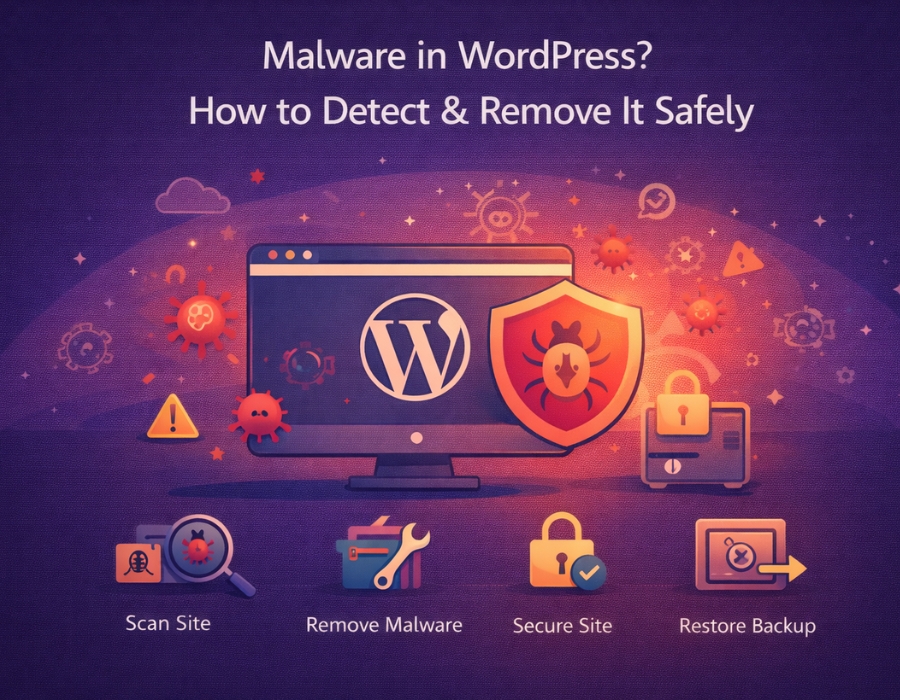
There are plugins built specifically for this. A good scan will go through your files, flag anything suspicious, identify code that shouldn’t be there, and give you a clear picture of how widespread the problem actually is. Going in blind without this information just makes everything harder and slower.
Look Through Your Files Manually Too
Automated scans are useful, but they don’t always catch everything. Once you’ve run one, it’s worth going into your file manager and having a look around yourself.
You’re looking for files that don’t belong, anything that was last modified on a date when you weren’t working on the site, or folders that look unfamiliar. You don’t need to understand every file — just look for things that feel out of place. Sometimes it jumps out at you immediately.
Try to Remember What Changed
Malware doesn’t appear out of thin air. Something let it in. Think back to when you first noticed things going wrong and what happened around that time.
A plugin installed from a sketchy source, a theme downloaded outside of the official WordPress directory, an update that ran and immediately caused problems — any of these can be the entry point. If something lines up with the timing, start there. Removing or replacing that one thing can sometimes resolve more than you’d expect.
Lock Down Your Access Points
Here’s something a lot of people forget to do. Cleaning up the infected files is only half the job — if whoever got in still has valid credentials, they can just come straight back.
Reset your WordPress admin password, your hosting login, your FTP details, and anything else connected to your site. Do this before you consider the site properly clean. It’s a five-minute job that closes off a door people consistently leave open.
Decide Whether to Clean or Restore
Once you know what’s infected, you have two options. If it’s limited to a small number of files, you can clean those out specifically and move on. But if the infection has spread across multiple areas of your site, chasing every individual file is exhausting, and you might still miss something.
In that case, restoring from a clean backup is the most reliable path. It takes your site back to a point before any of this happened and removes the guesswork entirely. If you don’t have a backup, reinstalling WordPress core files at minimum replaces anything in there that might have been tampered with.
Lean on Your Hosting Support
If you’re going in circles and not making progress, just reach out to your hosting provider. This isn’t admitting defeat — it’s just practical. They have server-level access and diagnostic tools that you simply don’t have from the WordPress side.
They’ve also seen this exact situation many times before. Most hosting support teams can identify the problem quickly and either walk you through fixing it or sort it out themselves. Use that resource.
What Comes After the Cleanup
Getting your site clean is the goal, but it’s not the finish line. The way most sites end up with malware in the first place is through things that were left unattended — outdated plugins, abandoned themes, no backups, no security layer in place.
Once everything is sorted, get a backup system running if you don’t have one.
Set up automatic updates. Be more selective about what you install and where you get it from. Put a basic security plugin in place with firewall protection enabled. These aren’t big complicated tasks — they’re small habits that make a significant difference over time.
Final Thoughts
A hacked site feels like a crisis when you’re in the middle of it. But step back and work through it properly rather than panicking and making rushed decisions.
Find out exactly what happened, clean it thoroughly, secure the access points, and then put the basics in place so your site isn’t sitting wide open going forward. Most people who deal with this once and handle it properly never have to go through it again. If all the steps mentioned above looks a bit too complicated, you can always hire a WordPress support agency.
Recommended post: Elementor Not Loading? Step-by-Step Fix Guide (2026)