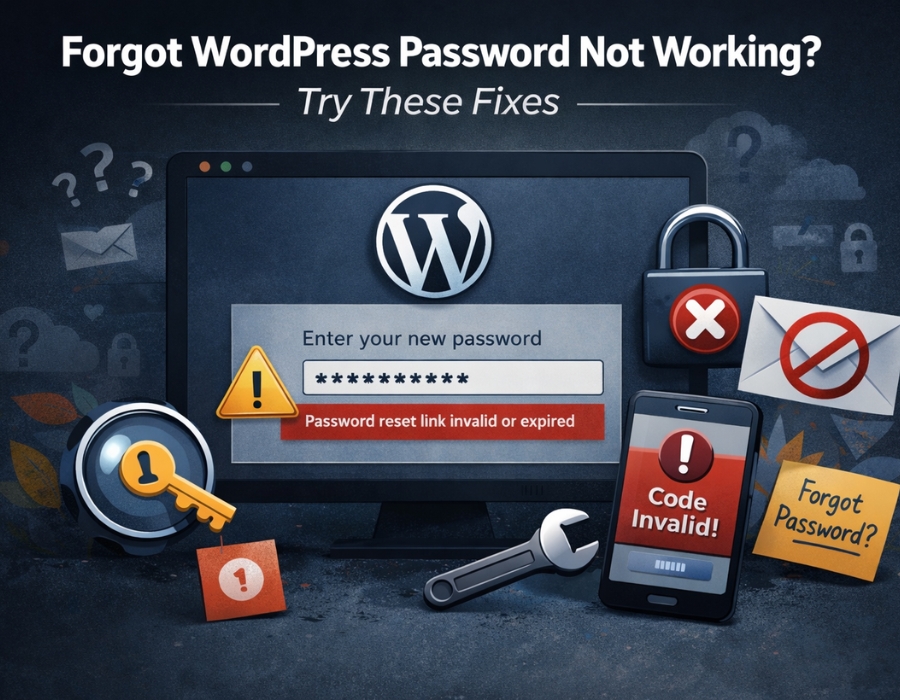
Forgot your WordPress password? Don’t worry, it happens to literally everyone. You go to reset it, click “Lost your password?”, put in your email, and nothing comes through. Or the reset link shows up, but just doesn’t work.
Yeah, that’s where it gets annoying.
It’s actually a really common problem, though, and most of the time it’s something small causing it.
Here’s what you can try:
First, Try the Basic Reset Again
Before anything else, just try the normal reset one more time. Go to the login page, click “Lost your password?”, enter your email, and give it a minute.
Then check:
- Your main inbox
- Spam or junk folder
- Promotions tab if you’re using Gmail
Sometimes the email is already there, just sitting somewhere you didn’t look.
If You’re Not Getting the Reset Email
This is where most people get stuck. WordPress doesn’t actually handle emails on its own — it relies on your hosting server to send them. And sometimes that just doesn’t work the way it should.
A few simple things to try:
- Wait a couple of minutes and refresh your inbox
- Try a different email if your site has multiple users
- Check if your hosting provider is blocking outgoing emails
If nothing comes through after all that, you’ll need to reset the password manually.
Reset Password Using phpMyAdmin
This sounds scarier than it is. Once you’re inside, it’s pretty simple.
Here are the steps to follow:
- Step 1: Open your database from your hosting panel
- Step 2: Find the wp_users table
- Step 3: Look for your username
- Step 4: Click edit and type in a new password
- Step 5: Select MD5 as the format before saving
Done. Try logging in with the new password after that.
Reset Password via wp-config File (Quick Trick)
If touching the database feels like too much, there’s another way using your site’s files.
Here’s how:
- Step 1: Go to your hosting panel and open the file manager
- Step 2: Find and open the wp-config.php file
- Step 3: Add this line somewhere before the “That’s all, stop editing!” line: wp_set_password(‘yournewpassword’, 1);
- Step 4: Replace yournewpassword with whatever password you want
Visit your website once, and WordPress will update the password automatically. Then go back into the file and remove that line straight away — if you leave it in, it’ll keep resetting your password every time the page loads.
If any of this feels too complicated, it’s worth getting a WordPress support agency to handle it for you.
Check If Your Site Has Email Issues
If reset emails are never showing up, the problem might actually be your email setup rather than the password itself.
This usually happens when:
- Your site is using the default PHP mail
- Your hosting server is limiting outgoing emails
Setting up SMTP usually sorts this out and makes sure emails actually get delivered properly going forward.
Clear Browser Cache and Try Again
Sometimes it’s not even a site issue. Your browser can store old data that messes with login pages or reset links.
Quick things to try:
- Clear your cache and cookies
- Open the reset link in incognito mode
- Try a different browser altogether
Takes two minutes, and sometimes that’s genuinely all it needs.
Make Sure You’re Using the Right Details
Sounds obvious, but it’s easy to overlook. If you’re entering the wrong email address or username, WordPress won’t send anything, and you’ll just be waiting for an email that’s never coming.
Just double-check before assuming something is broken on the site.
Final Thoughts
Getting locked out is frustrating, especially when the reset option isn’t doing what it’s supposed to. But honestly, it’s rarely a serious issue — usually just something small with your email setup or settings.
Once you’re back in, it’s a good idea to set up proper email delivery so you don’t run into this again.
Recommended post: WordPress Login Redirect Loop – Causes & Solutions