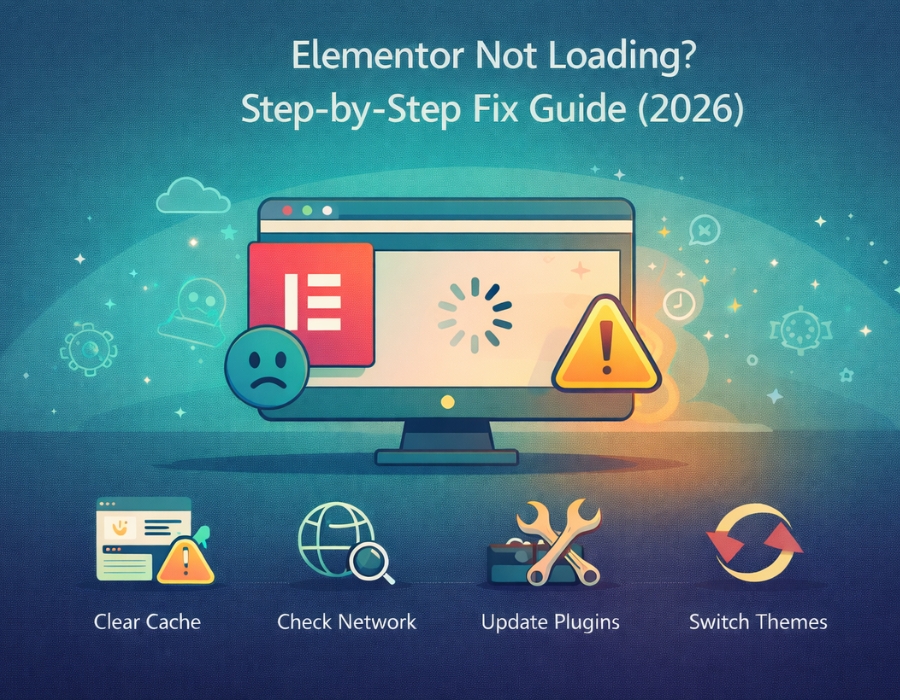
There’s nothing more annoying than opening a page you need to edit and just watching the page not load. Or worse, a completely blank screen that does absolutely nothing.
If Elementor isn’t loading for you, don’t panic. It happens all the time, and it’s almost never a serious problem. Something small is getting in the way, and once you find it, it’s usually a quick fix.
Here’s where to start:
Check Your Browser Before Anything Else
This sounds too simple, but it genuinely works more often than you’d expect. Your browser stores cached data, and sometimes that old data interferes with how the editor loads.
Try opening the page in an incognito window first. If that doesn’t work, switch to a completely different browser and try from there. If Elementor loads fine in one place but not another, your browser is the whole problem.
Turn Off Your Other Plugins
If the browser isn’t the issue, plugins are the next most likely culprit. When two plugins don’t play nicely together, Elementor is often the one that ends up breaking.
The easiest way to test this is to deactivate everything except Elementor and try loading the editor again. If it works, you know a plugin is causing it. Start turning them back on one at a time and test after each one — as soon as Elementor breaks again, you’ve found your problem plugin.
Try a Different Theme
Still not working? Swap your theme out temporarily. Switch to one of the basic default WordPress themes and see if Elementor loads properly after that.
If it does, your current theme has a compatibility issue with Elementor. At that point, you’ll need to either find a fix for the theme or consider switching to something that works better with it.
Give Your Site More Memory
Elementor is a fairly resource-heavy editor. If your hosting plan doesn’t give it enough memory to work with, it’ll just sit there loading and never actually open. You can bump up the memory limit by opening your wp-config.php file and dropping in this line:
define(‘WP_MEMORY_LIMIT’, ‘256M’);
Save it, refresh the page, and try opening Elementor again.
Clear Everything Cached
Caching is great for speed, but it can sometimes cause editors like Elementor to behave strangely. If your caching plugin has saved an outdated version of something, it can stop the editor from loading correctly.
Clear your caching plugin, clear any server-side cache your host might have, and then try again.
Think About Your Hosting
If you’ve gone through everything above and nothing has changed, your hosting might just not have the resources Elementor needs to run properly. You might notice the editor loads incredibly slowly, gets stuck halfway, or randomly fails without any clear reason.
This is more common on entry-level shared hosting plans. If your site has grown or you’ve added more to it over time, you might have outgrown your current plan.
Reinstall Elementor
If all else fails, just reinstall it. Delete the plugin completely, go to the WordPress plugin directory, and install a fresh copy.
It’s not a glamorous fix, but sometimes plugin files get corrupted or go missing, and a clean reinstall is all it takes to get things working again.
Final Thoughts
A loading screen that never ends or a blank editor feels like a disaster when you’re trying to get work done, but the cause is almost always something straightforward.
Go through these one at a time, starting with your browser and working your way down the list. Chances are you’ll have it sorted before you even get halfway through. If this still feels like a huge task or too technical, consider hiring an Indian WordPress agency to get it done for you.
Recommended post: High CPU Usage in WordPress – What’s Causing It & How to Fix It